 AI Chat Tools
Delete or archive ChatGPT chats in bulk
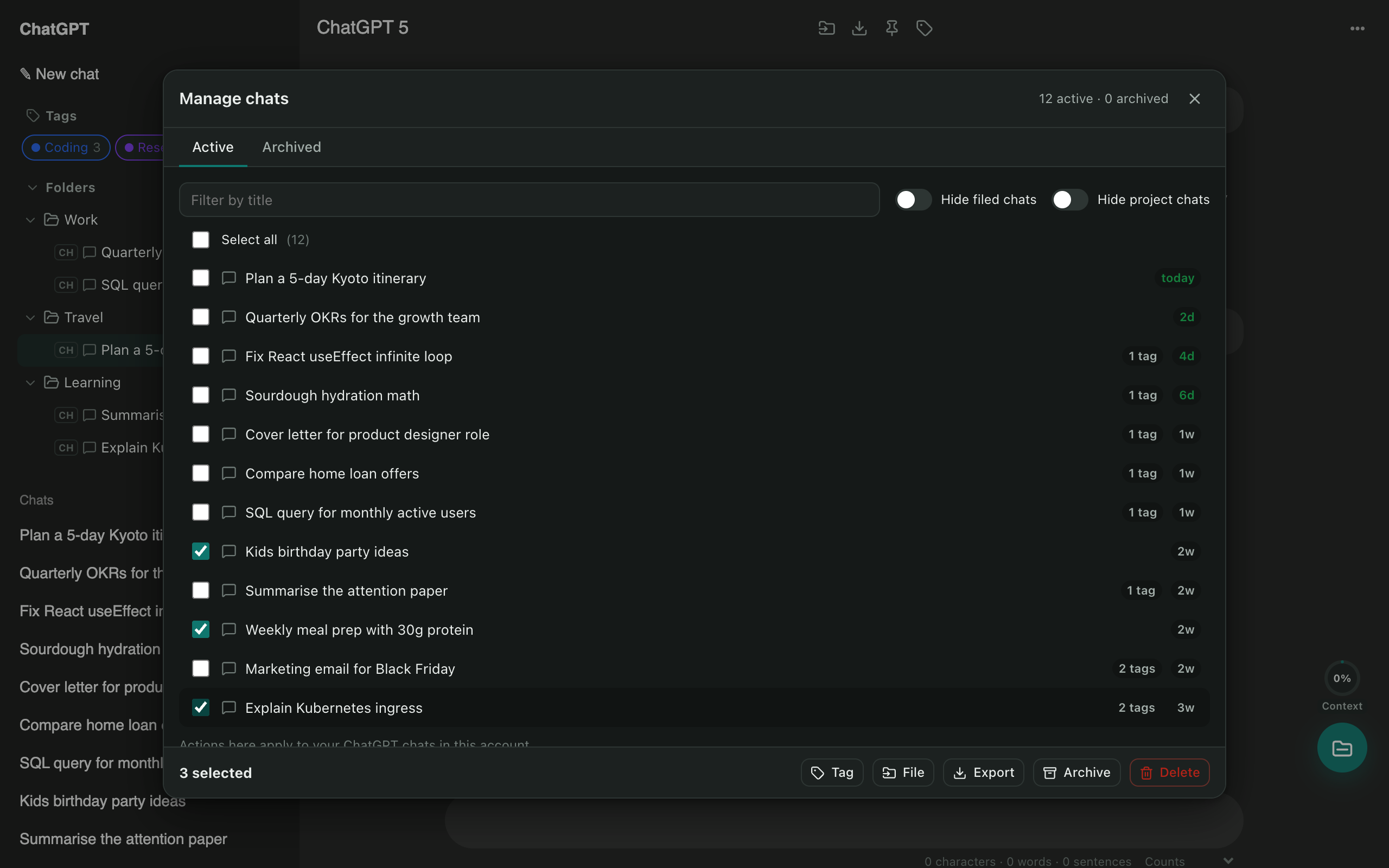
Clear out old chats in seconds. Tick the ones you want gone, or select all, then delete or archive them together.
Coming soon to the Chrome Web StoreRead the guide
How it works
- Open Manage chats from the launcher, or press Ctrl/⌘ + K and type “delete”.
- Filter by title, or switch on Hide filed chats to protect everything that’s in a folder.
- Tick chats, or use Select all.
- Press Delete or Archive and confirm.
Safer than the built-in “delete all”
ChatGPT’s own setting deletes everything. With AI Chat Tools you choose exactly which chats go, and archived chats can be brought back from the Archived tab whenever you like.
Also on Claude
Bulk delete works on Claude too, from the same window.
Questions
Can I undo a bulk delete?
Deleting on ChatGPT can't be undone there, so you get a confirmation step first. By default AI Chat Tools also keeps a private copy of each deleted chat on your device for 30 days (Settings → Data → Recently deleted). You can switch this off on shared computers.
Is archiving safer than deleting?
Yes. Archived chats disappear from your sidebar but stay in your account. Open the Archived tab in Manage chats to restore them in bulk.
Is there a limit on how many chats I can delete?
No. Select as many as you like.
Can I keep chats that are in my folders?
Turn on Hide filed chats in Manage chats, and only unfiled chats are shown. Then Select all won't touch anything you've organised.
More tools
ChatGPT exporter
One click saves the chat you're reading. Or select dozens of chats and download them all as a ZIP, organised by folder.
ChatGPT to Claude
Carry a conversation to another assistant without starting over. The context is condensed on your device and placed in the new chat for you.
ChatGPT folders
Nested folders appear in ChatGPT's own sidebar. Drag a chat onto a folder to file it, and keep your chat list tidy.