 AI Chat Tools
Guides · Updated November 21, 2026
How to Transfer a ChatGPT Conversation to Claude
Move a ChatGPT chat to Claude (or Gemini) and keep the context. Condense it on your device or ask ChatGPT for a hand-off summary, then continue in Claude.
The quick way
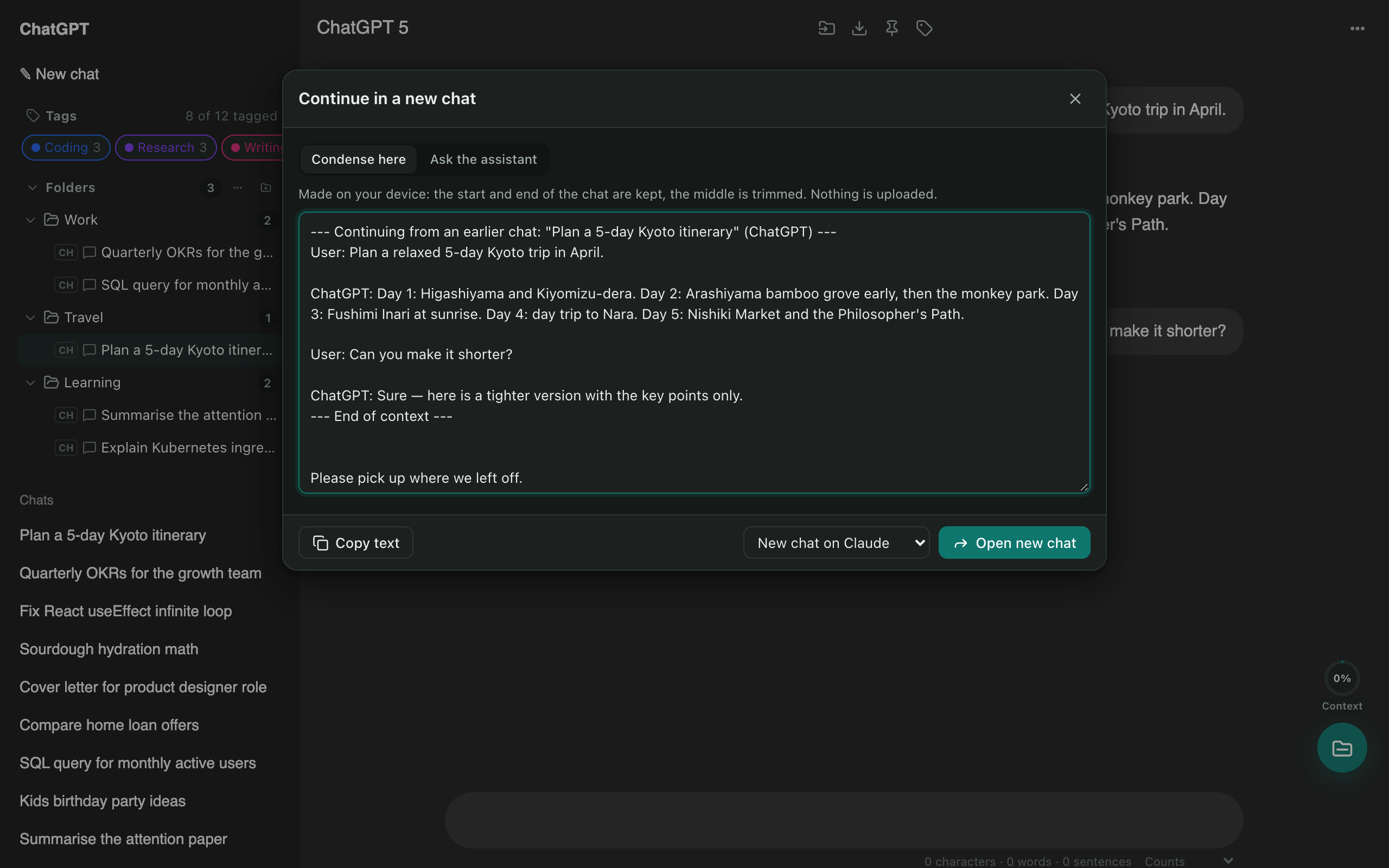
- Open the ChatGPT conversation you want to move.
- Press Ctrl/⌘ + K and choose Continue in a new chat.
- Pick how to carry the context:
- Condense here: made on your device; keeps the start and end of the chat.
- Ask the assistant: ChatGPT writes a short summary of goals, facts and next steps.
- In the menu at the bottom, choose New chat on Claude and press Open new chat.
- Claude opens in a new tab with the context in the message box. Add your next question and send.
Moving to Gemini or Grok
Same steps; pick Gemini or Grok in the menu. Turn those sites on first from the AI Chat Tools toolbar button.
Keep a full copy
Before you switch, you can export the chat as Markdown or PDF so you have the complete conversation.
Questions
Can I import my whole ChatGPT history into Claude?
Claude has no bulk import for ChatGPT history. Move the conversations you're still working on one at a time, and keep the rest as Markdown or PDF exports.
Do I need to be signed in to both?
Yes. The new chat opens on claude.ai in your browser, so you need to be signed in there.
Do this in one click with AI Chat Tools
Free Chrome extension for ChatGPT, Claude, Gemini and Grok. Your chats stay on your device.
Coming soon to the Chrome Web Store