 AI Chat Tools
Export ChatGPT chats to PDF, Markdown and more
One click saves the chat you're reading. Or select dozens of chats and download them all as a ZIP, organised by folder.
Coming soon to the Chrome Web StoreRead the guide
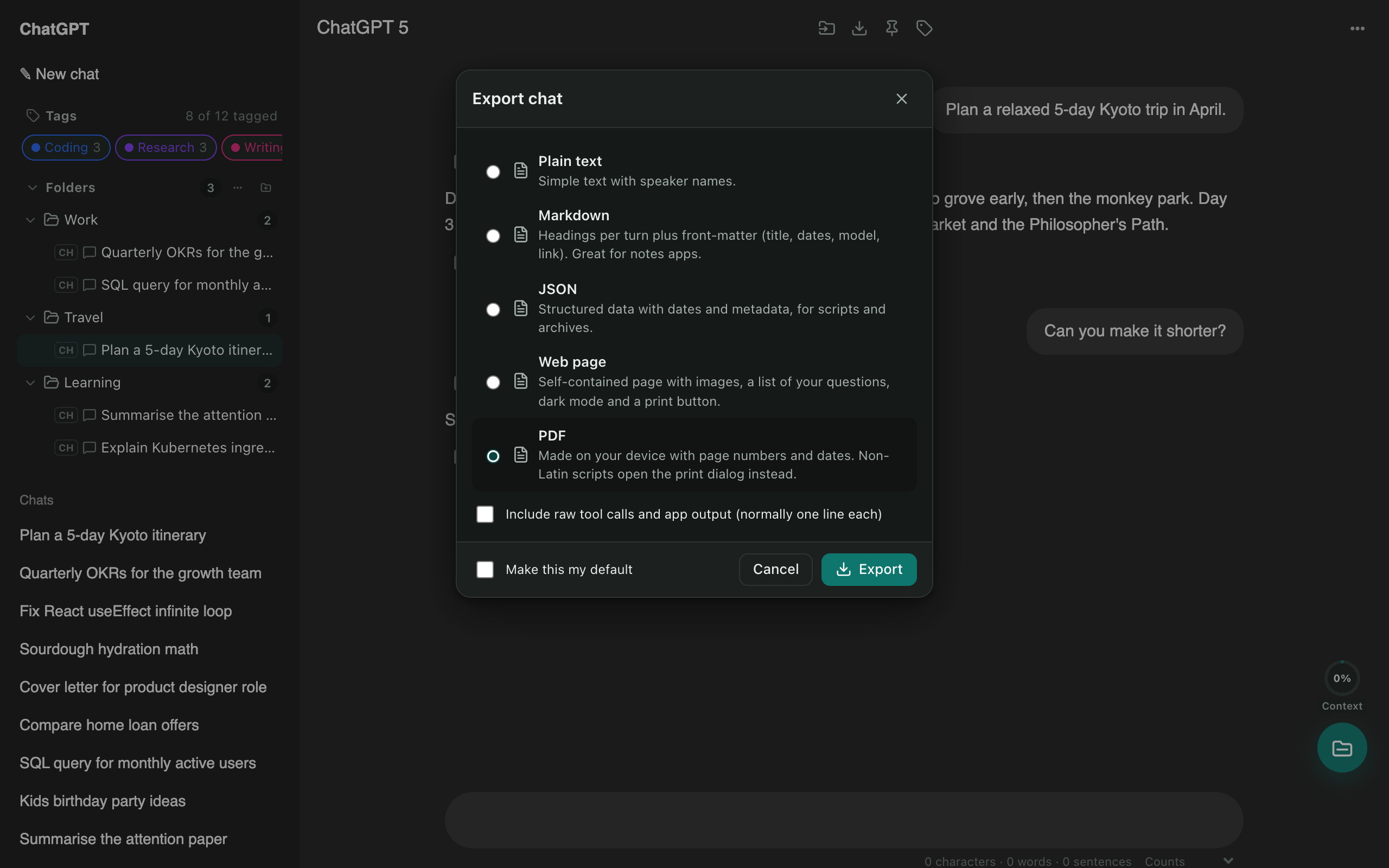
Every format you need
- PDF: clean pages with speaker names, dates and page numbers. Bold text, headings and bullet lists come out formatted, not as raw
**marks. - Markdown: one heading per turn plus front-matter (title, dates, model, link). Drops straight into Obsidian or Notion.
- Web page: one HTML file with images, a list of your questions, dark mode and a print button.
- JSON and plain text for scripts, archives and quick copies.
Export many chats at once
Open Manage chats, tick the chats you want (or Select all) and press Export. You get one ZIP, with folders that mirror your own folder structure.
Keyboard friendly
Press Ctrl/⌘ + K and type “export”. You can also set your favourite format as the default.
Questions
Which formats can I export to?
PDF, Markdown, plain text, JSON and a self-contained web page (HTML). The web page keeps images and has a dark mode and a print button.
Does the PDF handle ₹, emoji and other symbols?
Yes. PDFs are built with embedded Unicode fonts, so currency signs, accents and most symbols print correctly. For scripts the PDF font can't draw, you also get a Markdown copy.
Are my chats uploaded anywhere to make the PDF?
No. Every export is created inside your browser. Nothing is sent to our servers.
Can I export Claude, Gemini or Grok chats too?
Yes, the same export works on Claude, Gemini and Grok.
More tools
Bulk delete chats
Clear out old chats in seconds. Tick the ones you want gone, or select all, then delete or archive them together.
ChatGPT to Claude
Carry a conversation to another assistant without starting over. The context is condensed on your device and placed in the new chat for you.
ChatGPT folders
Nested folders appear in ChatGPT's own sidebar. Drag a chat onto a folder to file it, and keep your chat list tidy.