 AI Chat Tools
Folders for ChatGPT, right in the sidebar
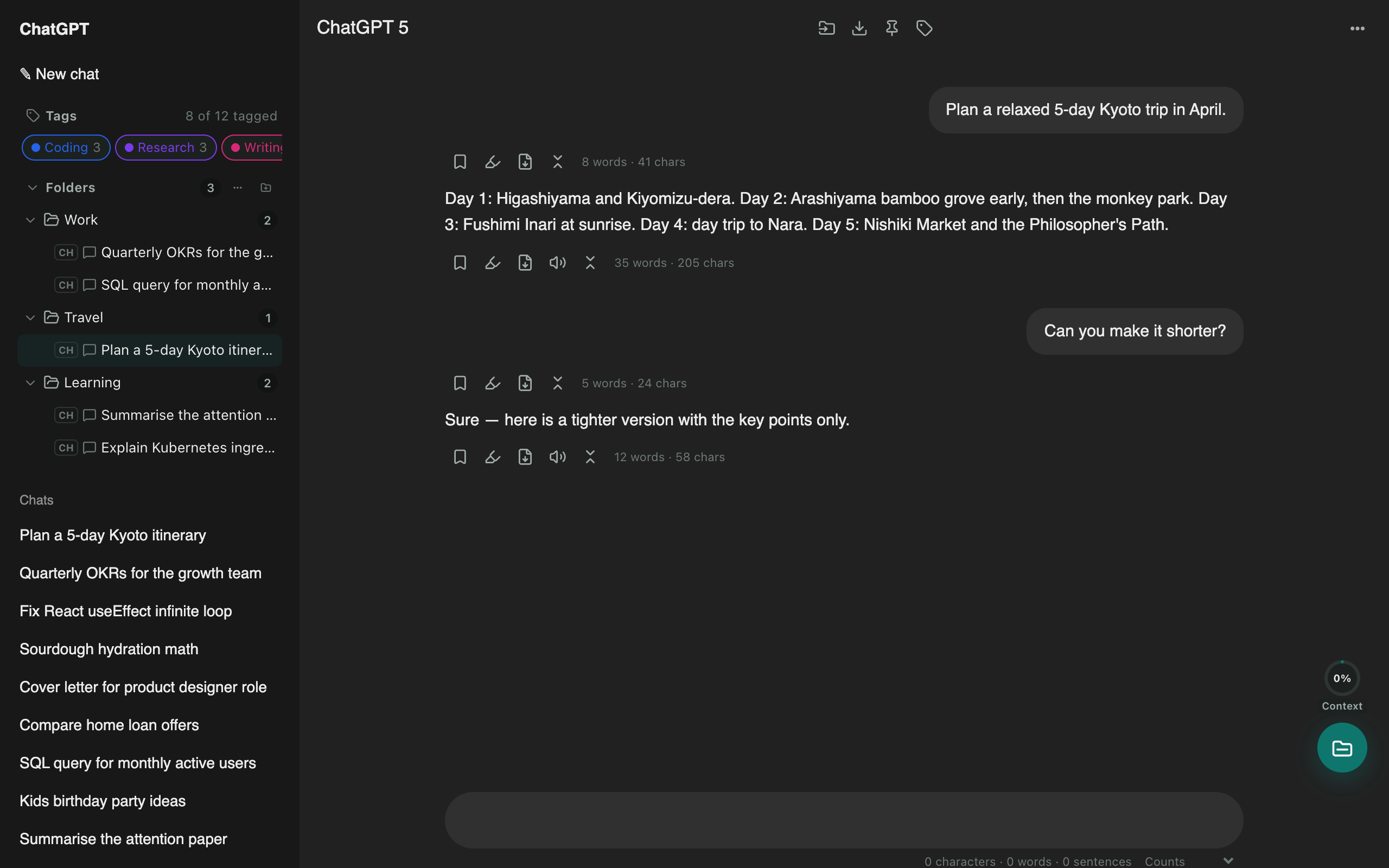
Nested folders appear in ChatGPT's own sidebar. Drag a chat onto a folder to file it, and keep your chat list tidy.
Coming soon to the Chrome Web StoreRead the guide
Built for how you actually work
- Drag and drop: drag a chat from ChatGPT’s list onto a folder.
- Nested folders, with colours, stars and sorting (recent, A–Z, manual).
- Pinned chats at the top of the sidebar.
- Tags: automatic topic tags plus your own, with keyword rules.
- Hide filed chats so ChatGPT’s list only shows what you haven’t organised yet.
Across every assistant
The same folders work on Claude, Gemini and Grok, so a project’s chats can live together whichever AI you used.
Questions
How many folders can I create?
As many as you like, nested as deep as you like.
Can one chat be in two folders?
Yes. Add keeps a chat in its other folders; Move takes it out of them first.
Can a folder hold chats from different AI sites?
Yes. Folders can mix ChatGPT, Claude, Gemini and Grok chats. Each chat shows a small badge for its site and opens on the right one.
Where are my folders stored?
In your browser, on your device. Use Settings → Data → Download backup to keep a copy or move to another computer.
More tools
ChatGPT exporter
One click saves the chat you're reading. Or select dozens of chats and download them all as a ZIP, organised by folder.
Bulk delete chats
Clear out old chats in seconds. Tick the ones you want gone, or select all, then delete or archive them together.
ChatGPT to Claude
Carry a conversation to another assistant without starting over. The context is condensed on your device and placed in the new chat for you.