 AI Chat Tools
Move a ChatGPT chat to Claude, Gemini or Grok
Carry a conversation to another assistant without starting over. The context is condensed on your device and placed in the new chat for you.
Coming soon to the Chrome Web StoreRead the guide
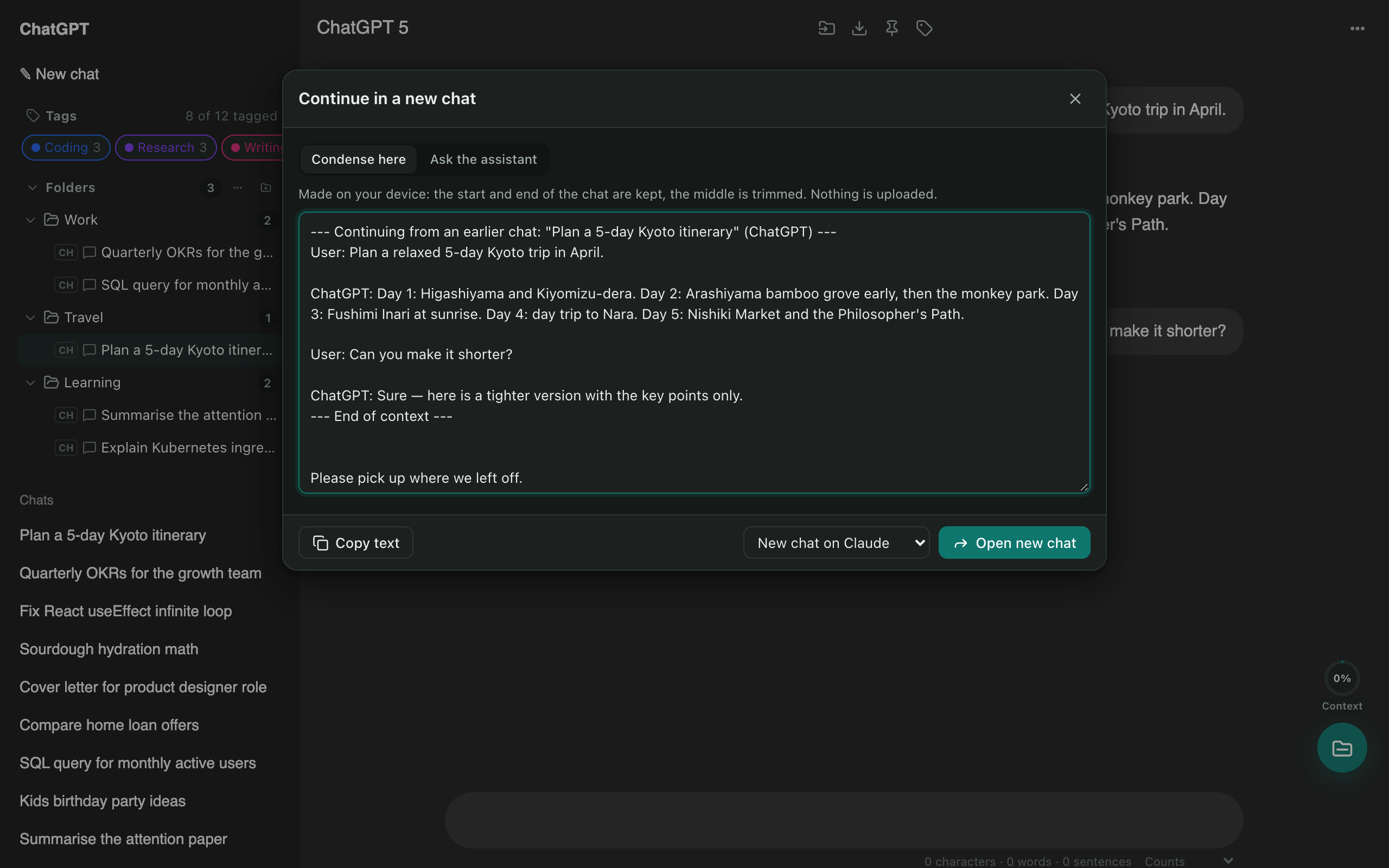
Two ways to carry context
- Condense here: made on your device. The start and end of the chat are kept, the middle is trimmed. Nothing is uploaded.
- Ask the assistant: sends one request to the current assistant asking for a compact hand-off summary (goal, key facts, decisions, next step).
Pick where to continue
Choose New chat on ChatGPT, Claude, Gemini or Grok and press Open new chat. The new tab opens with the context already in the message box. You read it, add your question and send.
Great when you hit a limit
When a chat gets too long, or one assistant is better at the next step (coding, writing, research), switch without retyping anything.
Questions
Does it copy the whole conversation?
It keeps the start and the end of the chat and trims the middle, so the context fits in the new chat. Or choose Ask the assistant to have ChatGPT write a compact summary first.
Is my chat uploaded to do this?
No. The condensed version is made in your browser and pasted into the new chat's message box. You review it and press send yourself.
Does it work the other way, Claude to ChatGPT?
Yes. You can continue from any supported site to any other: ChatGPT, Claude, Gemini and Grok.
Can it move all my chats at once?
It works one conversation at a time. For a full archive, export your chats as Markdown or PDF.
More tools
ChatGPT exporter
One click saves the chat you're reading. Or select dozens of chats and download them all as a ZIP, organised by folder.
Bulk delete chats
Clear out old chats in seconds. Tick the ones you want gone, or select all, then delete or archive them together.
ChatGPT folders
Nested folders appear in ChatGPT's own sidebar. Drag a chat onto a folder to file it, and keep your chat list tidy.