 AI Chat Tools
Guides · Updated November 21, 2026
How to Delete ChatGPT History (One Chat, Many, or All)
Step-by-step: delete a single ChatGPT chat, delete many chats at once, or clear your whole ChatGPT history, plus how to keep the chats you still need.
There are three ways to clear ChatGPT history, depending on how much you want gone.
Delete one chat (built into ChatGPT)
- Hover the chat in the sidebar and click the ⋯ menu.
- Choose Delete, then confirm.
Delete many chats at once
ChatGPT has no multi-select, so this is where AI Chat Tools helps.
- Install AI Chat Tools and open chatgpt.com.
- Press Ctrl/⌘ + K, type delete, and open Manage chats.
- Tick the chats you want to remove. Use the filter box to find them by title, or Select all.
- Want to keep organised chats? Switch on Hide filed chats first, so chats in your folders aren’t shown or selected.
- Press Delete and confirm.
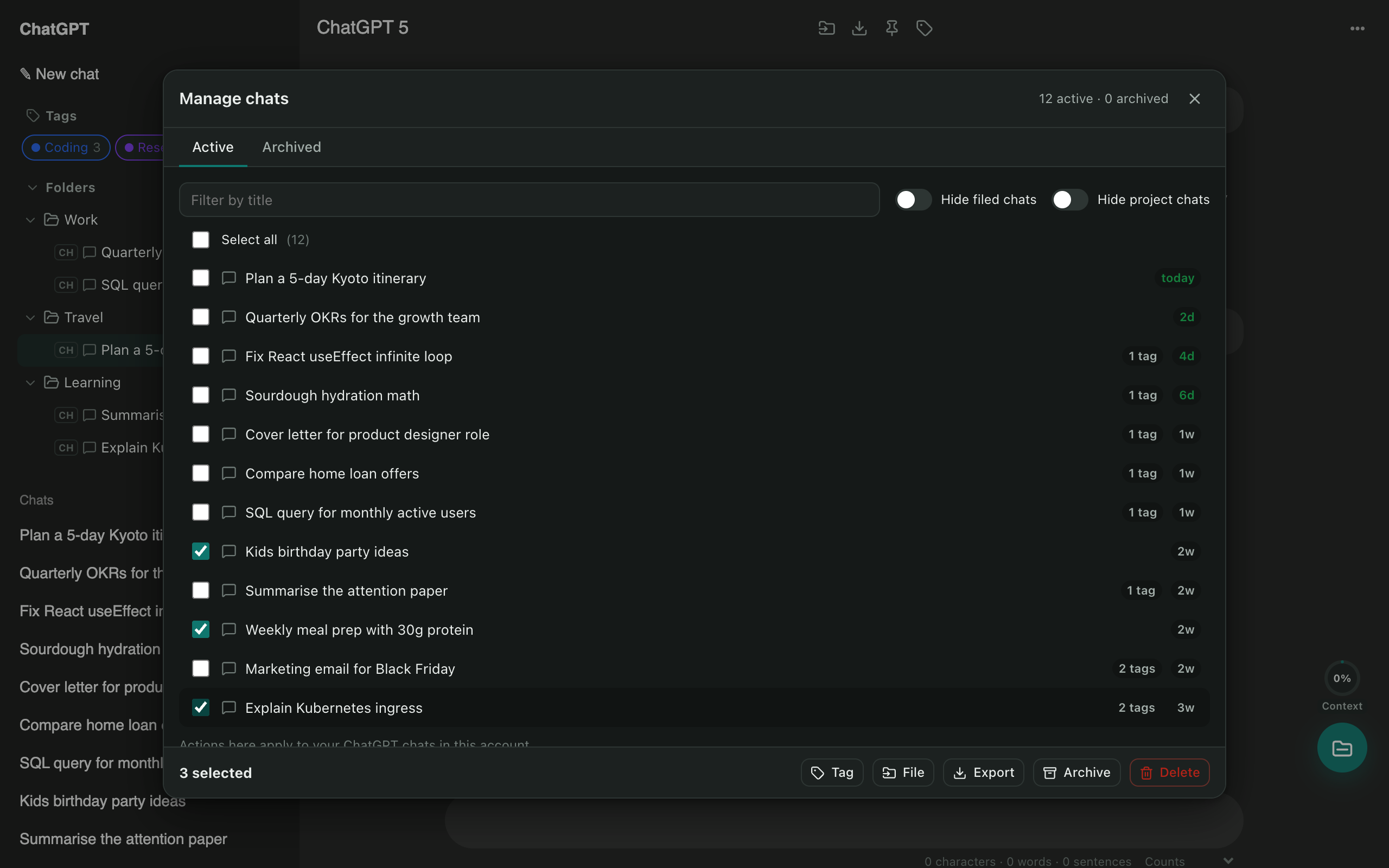
Not sure? Press Archive instead. Archived chats leave your sidebar but can be restored any time from the Archived tab.
Delete all ChatGPT history
ChatGPT’s own option removes every chat in one go: Settings → Data controls → Delete all chats. Before you do, consider exporting the chats you might want later: select them in Manage chats and press Export to download a ZIP.
Questions
Can I recover a deleted ChatGPT chat?
Not from ChatGPT itself once it's deleted. If you delete with AI Chat Tools, a private copy is kept on your device for 30 days by default (Settings → Data → Recently deleted).
Does deleting a chat delete ChatGPT's memory?
No. Memory is separate. Manage it in ChatGPT under Settings → Personalization → Memory.
Free Chrome extension for ChatGPT, Claude, Gemini and Grok. Your chats stay on your device.
Coming soon to the Chrome Web Store