 AI Chat Tools
Guides · Updated November 21, 2026
How to Export a ChatGPT Conversation to PDF
Save any ChatGPT chat as a clean PDF with formatting, dates and page numbers, or export many chats at once as a ZIP. Works with ₹, emoji and other symbols.
Export the chat you’re reading
- Open the conversation on chatgpt.com.
- Click the download icon that AI Chat Tools adds to the top bar, or press Ctrl/⌘ + K and type export.
- Choose PDF and press Export.
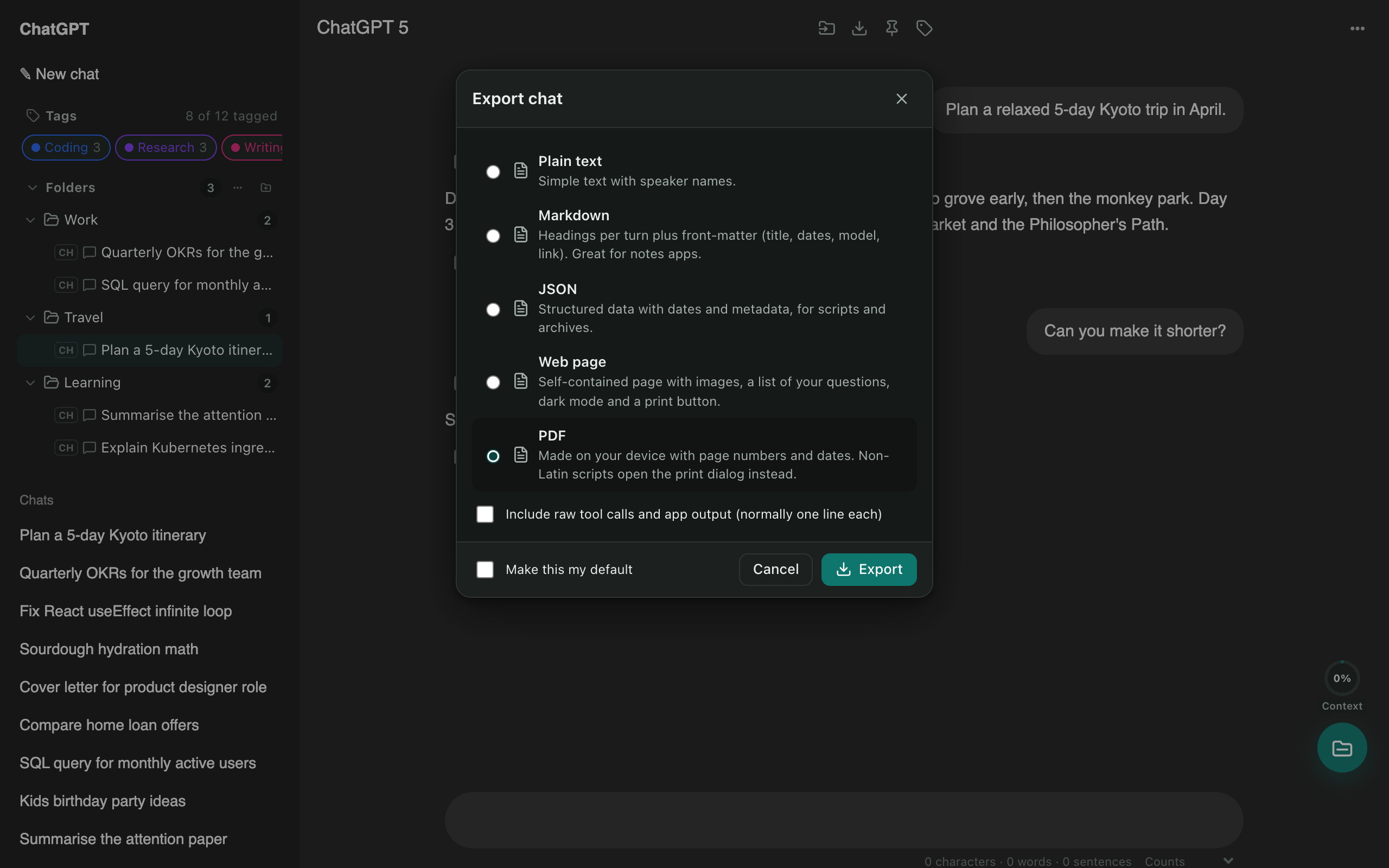
The PDF has the title, dates and a link back to the chat, then each message with the speaker’s name. Bold text, headings and bullet lists are formatted. Currency signs like ₹, € and £ print correctly.
Export many chats at once
- Open Manage chats (Ctrl/⌘ + K → “manage chats”).
- Tick the chats, or Select all.
- Press Export, pick a format and download one ZIP. Folders in the ZIP match your folders.
Other formats
Markdown is best for notes apps like Obsidian or Notion. Web page keeps images and has a print button. JSON suits scripts and archives.
Questions
Why not just print the page to PDF?
Printing ChatGPT's page cuts off long chats, includes the sidebar and buttons, and often splits code across pages. The export builds a clean document from the conversation itself.
Can I export to Word?
Export to Markdown or the web page format, then open it in Word or Google Docs. Both keep headings and lists.
Free Chrome extension for ChatGPT, Claude, Gemini and Grok. Your chats stay on your device.
Coming soon to the Chrome Web Store